
Batch Number Management
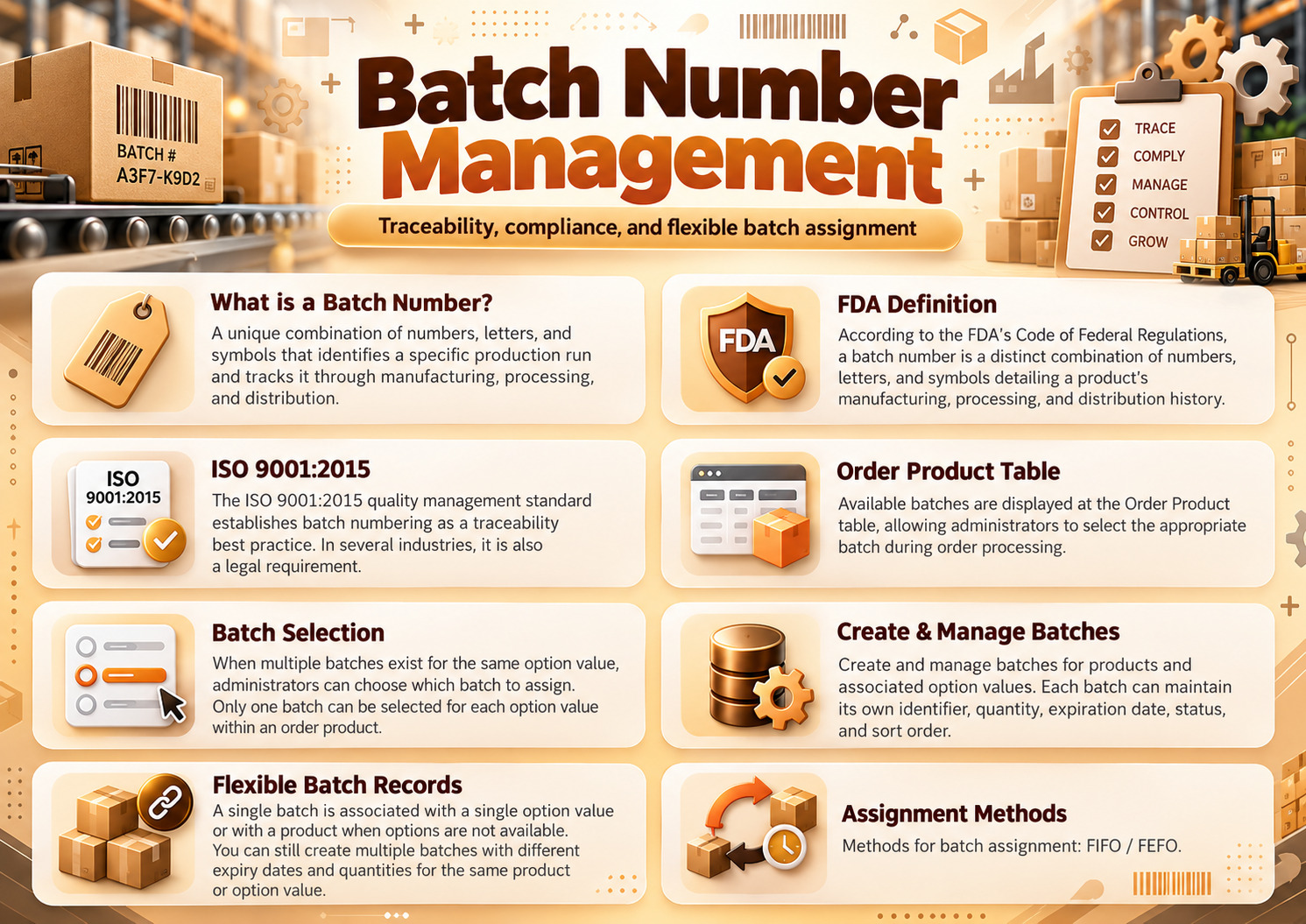
A batch number is a unique combination of numbers, letters, and symbols that identifies a specific production run of a product. It tracks the product through manufacturing, processing, and distribution.
Batch numbers are required by the FDA for food, beverages, infant formula, and pharmaceuticals. They’re also a quality-control standard under ISO 9001:2015.
Batch numbers, lot numbers, and serial numbers are related but distinct: batch and lot are usually interchangeable; serial numbers identify individual units, not groups.
Single Domain License
$49.00
$39.00

Introduction
What is Batch Number?
A batch number tells you which production run a specific product came from. It is a unique combination of numbers, letters, and symbols that identifies a specific production run of a product.
Why Batch Number is Required?
Batch numbers are required by the FDA for food, beverages, infant formula, and pharmaceuticals. They’re also a quality-control standard under ISO 9001:2015.
If something goes wrong. A contamination event, a quality issue, a recall. The batch number is the thread that lets you find every other unit affected and pull them off shelves quickly
Product and Product Option-Based Batch Management
Create and manage batches for individual products and their associated option values. Each batch can maintain its own identifier, quantity, expiration date, status, and sort order.
Associate batches with specific product option values to maintain more detailed inventory records for different product variations.
This provides greater flexibility for stores selling products in multiple sizes, configurations, or variations.
Note: Create Batch using Different Options Combination is Not Available Yet.
Single Batch is associated with single option value or a product when option not available, however it does not means you can not create batches with different expiry date, quantity using same product or product option value. You can certainly do that.
Example:
Product: | Whey Protein Powder |
Flavor: | Chocolate, Vanilla, Strawberry |
Size: | 500g, 1kg, 2kg |
| Type: | Concentrate, Isolate |
Product: | Lager Beer |
| Size: | 330ml, 500ml, 650ml |
Pack Size: | Single, 6-Pack, 12-Pack |
Packaging: | Glass Bottle, Plastic Bottle, Can |
Product: | Energy Drink |
Size: | 250ml, 330ml, 500ml |
Flavor: | Original, Tropical, Berry |
Type: | Regular, Sugar-Free |
Pack Size: | Single, 6-Pack, 12-Pack |
Packaging: | Glass Bottle, Plastic Bottle, Can |
# Case : Single Product Option Value
See screenshot (Add screenshot here)
How batches are assigned to customer orders
1. Manual Batch Assignment
2. Automatic Batch Assignment based order status
Methods for batches assignment
FIFO/FEFO
FIFO = First in First Out
FEFO = First Expires First Out
As store owner you assign batch from Order Information Page ( Sale > Order > Order View (Info) page).
How Does it Works?
1. When an administrator opens an order, eligible batches appear below the corresponding product option values.
2. If multiple batches are available for a particular option value, the administrator can choose from those batches.
3. Only one batch can be selected per product option value within an order product.
4. Products without options also support batch assignment.
5. The administrator clicks Assign Batch to save the selected assignments.
Example : Order #39
See Screenshot: ( Add screenshot here )
Assign Batches to Customer Orders
Assign product batches Admin Sale/Order/ View Information page.
Available batches are displayed alongside their corresponding product option values, allowing administrators to select the appropriate batch during order processing.
When multiple batches exist for the same option value, administrators can choose which batch to assign.
Only one batch can be selected for each option value within an order product.
Batch assignment is also supported for products without options.
Once the required batches are selected, administrators can click the Assign Batch button to save the assignments.
Batch assignment availability can be controlled through configurable order statuses, ensuring administrators can assign batches only when orders reach the permitted processing stages
Automatic Batch Quantity Deduction
When an administrator assigns a batch to an ordered product, the extension automatically deducts the ordered quantity from the selected batch.
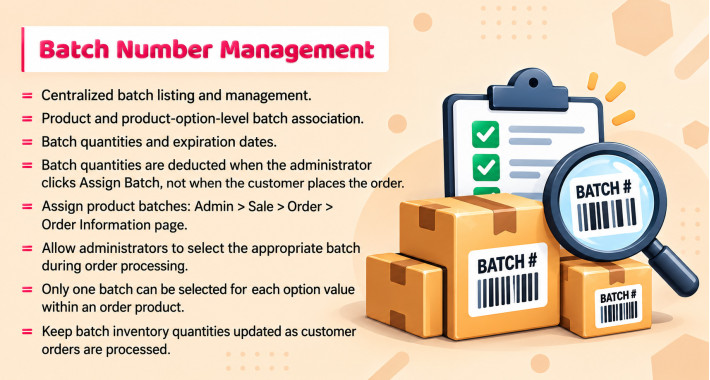
Batch quantities are deducted when the administrator clicks Assign Batch, not when the customer places the order.
Deduction is based on the ordered product quantity.
However before administrator can assign a batch order status must be one of selected order status in settings defined.
For example, if a batch contains 1,000 units and an order requires 2 units, assigning that batch automatically updates its remaining quantity to 998 units.
It helps prevent accidental batch assignment to past process orders.


Centralized batch listing and management.
Product and product-option-level batch association.
Batch quantities and expiration dates.
Configurable default expiration period.
Enable/disable individual batches.
Configurable order statuses for batch assignment.
Batch export configuration.
Manual Batch Assignment
Batch quantities are deducted when the administrator clicks Assign Batch, not when the customer places the order.
Deduction is based on the ordered product quantity.
*Automatic Batch Assignment
FIFO / FEFO
Assign product batches Admin Sale > Order > Order Information page
Available batches are displayed at Order Product table allow administrators to select the appropriate batch during order processing.
When multiple batches exist for the same option value, administrators can choose which batch to assign. Only one batch can be selected for each option value within an order product.
Keep batch inventory quantities updated as customer orders are processed.
- Documentation Included
- Develop By Module Points
- 12 Months Support
Last Update
18 Oct 2026
Created
17 Oct 2026
Multi-Language
No
Multi-Store
No
Rating
Compatibility
3.0.4.0, 3.0.3.9, 3.0.3.8, 3.0.3.7, 3.0.3.6, 3.0.3.5, 3.0.3.3, 3.0.3.2, 3.0.3.1, 3.0.3.1, 3.0.3.0, 3.0.2.0, 3.0.1.2, 3.0.1.1, 3.0.0.0